How to Secure Baby Monitor in 5 Easy Steps
Table of Contents
You don’t need to be a tech expert to protect your baby monitor from hackers—you just need to be consistent. As a grandmother who’s watched countless parents struggle with complex security advice that never gets implemented, I’ve learned something crucial: the best security strategy is the one you’ll actually follow.
After researching FBI investigations, consulting with cybersecurity experts, and analyzing hundreds of baby monitor hacking incidents, I’ve distilled monitor security down to five straightforward steps that any parent can implement in under 30 minutes. These aren’t technical workarounds requiring IT expertise—they’re practical habits that dramatically reduce your vulnerability to unauthorized access.
This actionable guide provides a non-alarmist, step-by-step approach to how to secure baby monitor, whether you’re using WiFi-enabled smart cameras or traditional digital monitors. For comprehensive context on monitor safety including EMF radiation concerns, see our complete analysis: Are Wi-Fi Baby Monitors Safe?
Step 1 how to secure baby monitor : Place Your Monitor Far From the Crib (and Router)
Before addressing digital security, start with physical placement—it affects both safety and vulnerability.
The 6-Foot Rule for EMF Safety
It is recommended that you place a wireless baby monitor at least 6 feet (1.8 meters) away from your baby’s crib. This distance significantly reduces electromagnetic field (EMF) radiation exposure to your baby’s developing brain.
Why Distance Matters:
Research on digital cordless baby monitors shows that monitors placed less than 3.2 feet (1 meter) away from a baby’s crib emit almost the same level of radiation as a cell phone tower 500 feet (150 meters) away.
A baby’s skull is two millimeters thick, compared to an adult skull at six to seven millimeters thick—meaning babies absorb significantly more radiation from the same source.
Practical Placement Strategy:
- Position monitor on a dresser or shelf at least 6 feet from the crib
- Angle camera to capture full crib view from this distance
- Ensure monitor is stable and cannot be knocked over
- Keep power cords out of baby’s reach
For detailed research on EMF exposure, see the radiation safety section in Are Wi-Fi Baby Monitors Safe?
Avoid Co-Location with WiFi Routers
You’ll see in most baby monitor manufacturer’s user manuals that the monitor should not be co-located with another wireless device. This means you should not place a WiFi router, for example, in close distance from the monitor.
The Security Advantage:
Keeping your monitor away from your router serves dual purposes:
- Reduces interference that can degrade video quality
- Decreases signal strength available to potential hackers attempting local network attacks
Additional Co-Location Warnings:
- Keep away from cordless phones (2.4 GHz interference)
- Avoid placement near microwaves
- Separate from other smart home devices when possible
Use VOX Mode to Reduce Transmission Time
Voice-activated baby monitors can provide the best of both worlds. Their default mode should be at a low frequency to only transmit audio, but then automatically switch to a video feed if your baby starts crying, greatly reducing unnecessary constant exposure to electromagnetic radiation.
VOX Benefits:
- Dramatically reduces EMF exposure (screen only activates when baby makes noise)
- Extends battery life on parent unit
- Reduces “always-on” vulnerability window for hackers
- Preserves your sanity by not showing every tiny movement
Implementation: Most monitors offer sensitivity adjustment for VOX mode. Start at medium sensitivity and adjust based on whether you’re missing cries (increase sensitivity) or getting too many false activations (decrease sensitivity).
Step 2: Lock Down Your Home Network
Your baby monitor is only as secure as the network it’s connected to. Network security represents your first line of defense against unauthorized access.
Use WPA3 Encryption (or WPA2 Minimum)
Your router’s encryption protocol determines how difficult it is for attackers to intercept or access your network traffic.
Encryption Hierarchy:
- ❌ WEP: Obsolete, cracked in minutes—never use
- ⚠️ WPA: Vulnerable to sophisticated attacks—upgrade if possible
- ✅ WPA2: Minimum acceptable standard for current security
- ✅✅ WPA3: Current best practice, maximum protection
How to Check and Change:
- Log into your router’s admin panel (usually 192.168.1.1 or 192.168.0.1)
- Navigate to Wireless Security settings
- Select WPA3 or WPA2 encryption
- Set a strong network password (different from router admin password)
- Save settings and reconnect devices
Create a Separate Guest Network for IoT Devices
This isolation strategy represents one of the most effective security measures you can implement.
Why Network Segregation Works:
Create a separate guest network on your router specifically for IoT devices like baby monitors. Even if your monitor is compromised, hackers cannot access your main network where your computers, phones, and sensitive data reside.
Setup Process:
- Access your router’s admin panel
- Navigate to Guest Network or IoT Network settings
- Enable guest network feature
- Create unique network name (SSID) like “Smart_Devices_Only”
- Set strong password different from main network
- Disable guest-to-guest communication if option exists
- Connect baby monitor and similar devices only to this network
Additional Security Layer:
Some advanced routers allow you to restrict guest network devices from accessing each other, meaning even if one IoT device is compromised, it cannot attack your other smart devices.
Hide Your SSID for Additional Obscurity
While not foolproof, hiding your network name (SSID) adds an extra layer by preventing your network from appearing in available WiFi lists.
Implementation:
- Log into router admin panel
- Find Wireless Settings
- Locate “SSID Broadcast” or “Hide Network” option
- Disable SSID broadcast
- Save changes
Important Note: You’ll need to manually enter the network name when connecting devices, as it won’t appear in the WiFi list anymore.
Disable Unnecessary Router Features
Change your SSID (network name) and Wi-Fi password. Use something unique and avoid using personal information. Enable WPA2 or WPA3 encryption. Disable WPS (Wi-Fi Protected Setup). Change the router admin password. Disable UPnP (Universal Plug and Play).
Critical Router Security Settings:
Disable WPS (WiFi Protected Setup): This “convenience” feature has known vulnerabilities allowing attackers to brute-force access in hours. Turn it off.
Disable UPnP (Universal Plug and Play): Unless specific devices require it, UPnP creates security holes by automatically opening ports without your knowledge.
Disable Remote Management: Unless you specifically need to manage your router from outside your home, this feature only provides an attack vector.
Change Router Admin Password: Never use default admin credentials. Your router stores the settings for your home network—protecting it protects everything connected to it.
Step 3: Fortify Login Credentials
Weak or default passwords represent the #1 vulnerability hackers exploit. This single step eliminates the most common attack vector.
Never Use Default Usernames and Passwords
The credentials can be retrieved through a simple google search, be stated in the product manual, be the easily guessable pair of “admin” and “admin,” or some other equally ingenious word combination.
The Shocking Reality:
Security researchers routinely find thousands of baby monitors still using factory-default passwords. These credentials are publicly documented, making them the very first thing any hacker attempts.
Immediate Action Required:
If you’re still using default credentials, change them RIGHT NOW. Not tomorrow, not after finishing this article—literally pause reading and change them immediately. This five-minute action could prevent years of trauma.
Create Strong, Unique Passwords
Use a password manager to generate and store complex passwords that meet these requirements:
Password Requirements:
- ✅ Minimum 12 characters (15+ is better)
- ✅ Mix uppercase and lowercase letters
- ✅ Include numbers and symbols (!@#$%^&*)
- ✅ No personal information (names, birthdates, addresses)
- ✅ Never reuse passwords across accounts
- ✅ Avoid dictionary words or common phrases
Example Strong Password Structure:
- ❌ Weak: BabyMonitor2025, Emma2024, Password123
- ✅ Strong: Tr9$mK#vL2pQx8nW, xP7@hK2#nR9mB5wT
Password Manager Recommendations:
- 1Password (paid, excellent features)
- Bitwarden (free option, open-source)
- LastPass (freemium model)
- Dashlane (user-friendly interface)
Enable Two-Factor Authentication (2FA)
Two-factor authentication adds a critical layer, requiring a unique code beyond your password—essential for blocking unwanted logins.
How 2FA Works:
Even if a hacker obtains your password through credential stuffing or a data breach, they cannot access your account without the second authentication factor—typically a code sent to your phone or generated by an authenticator app.
2FA Methods (Best to Worst):
- Authenticator Apps (Google Authenticator, Authy) – most secure
- SMS Text Messages – convenient but vulnerable to SIM swapping
- Email Codes – least secure but better than nothing
Implementation:
- Open your baby monitor app settings
- Navigate to Security or Account Settings
- Find Two-Factor Authentication or 2FA option
- Follow setup wizard to link your phone or authenticator app
- Save backup codes in secure location
Critical Point:
If your baby monitor doesn’t offer 2FA, this represents a significant security shortcoming. Consider this limitation when purchasing or evaluating whether to upgrade to a more secure model.
Check for Password Exposure
Visit haveibeenpwned.com and enter your email address to see if your credentials appear in known data breaches.
What This Reveals:
This website aggregates information from hundreds of major data breaches. If your email appears, any passwords associated with that email may be compromised and exploited through credential stuffing attacks.
If Your Email Appears:
- Change passwords immediately on all affected accounts
- Enable 2FA wherever possible
- Never reuse those compromised passwords again
- Consider changing your email address for sensitive accounts
For comprehensive password security guidance, see our detailed article: Baby Monitor Hacking: How Hackers Get Access
Step 4: Keep Firmware Updated Regularly
Outdated firmware is the #1 exploit path for sophisticated hackers. This maintenance task is boring but critical.
Why Firmware Updates Matter
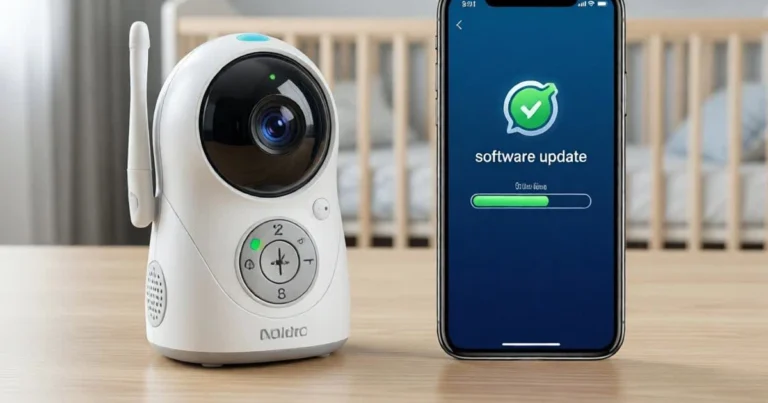
An issue that lies outside a user’s direct control is that a baby monitor’s software can be infested with bugs and the manufacturer may not release timely updates, paving the way for attackers to exploit vulnerabilities.
Real-World Consequences:
A vulnerability in a popular Wi-Fi-enabled video baby monitor discovered by researchers allowed attackers to access live footage, take screenshots, play music and learn the device ID. The vulnerability stemmed from misconfigured cloud storage permits—everyone with access to one baby monitor could gain access to all videos stored by other monitors of the same make.
This terrifying example shows how a single software flaw can compromise not just one family but thousands simultaneously.
How to Check for Updates
Method 1: Through the Mobile App (Most Common)
- Open your baby monitor app
- Navigate to Settings → Device Settings → Firmware
- Check current version against latest available
- Tap “Update” if newer version exists
- Allow update to complete (usually 5-15 minutes)
- Do not unplug monitor during update process
Method 2: Through Manufacturer Website
- Visit manufacturer’s support page
- Find your specific model number
- Download latest firmware file
- Follow installation instructions (varies by brand)
Method 3: Router-Based Updates (Some Models) Access monitor’s web interface through your router’s connected devices list and check for firmware updates there.
Enable Automatic Updates (If Available)
Some baby monitors get firmware and software upgrades automatically. If your model supports this feature, enable it to ensure you’re always protected against newly discovered vulnerabilities.
Verification: Check settings for options like:
- “Auto-update firmware”
- “Automatic security patches”
- “Check for updates automatically”
Set Monthly Calendar Reminders
If automatic updates aren’t available, set a recurring calendar reminder to manually check for updates on the first day of each month.
Reminder Template:
- Event: Check Baby Monitor Firmware
- Frequency: Monthly (1st of each month)
- Duration: 15 minutes
- Description: Log into app → Settings → Check for firmware updates
Know When to Replace
Discontinue use if brand stops supporting security patches. If your monitor manufacturer hasn’t released a firmware update in over 12 months, strongly consider replacing it with a currently-supported model.
Red Flags:
- Manufacturer went out of business
- Model discontinued with no update path
- Support page shows last update over 12 months ago
- Company doesn’t respond to security inquiries
Step 5: Turn Off Your Monitor When Not in Use
This simple habit reduces both EMF exposure and hacking vulnerability while costing absolutely nothing.
Reduce the Attack Window
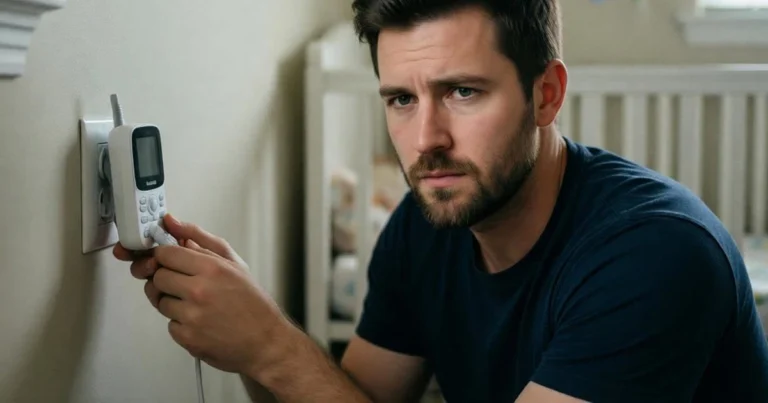
Turn off the monitor when not needed. This simple step can significantly reduce the window of opportunity for potential hackers.
When to Power Down:
- When someone is physically present with baby
- During daytime supervised play
- When baby is awake and in same room with you
- Any time monitoring isn’t actually necessary
The Security Logic:
Hackers cannot access a monitor that isn’t powered on or connected to the network. By limiting “always-on” time to only when you actually need surveillance, you dramatically reduce exposure.
Maximize VOX Mode Usage
Use VOX (voice-activated) mode to auto-activate only when baby cries. This reduces continuous transmission, extending battery life while minimizing both EMF exposure and security vulnerability.
VOX Mode Benefits:
- Monitor only transmits when baby makes sounds above threshold
- Reduces electromagnetic radiation exposure by 60-80%
- Shortens hacking opportunity window
- Preserves parent unit battery (can extend life from 8 hours to 20+ hours)
- Less distracting for parents (screen isn’t constantly on)
Setting Proper Sensitivity:
- Start at medium sensitivity level
- If missing baby’s cries: increase sensitivity
- If activating from household noises: decrease sensitivity
- Test from another room to verify detection
Disable Remote Access When Home
Disable remote access to your baby camera. It’s convenient but unnecessary. And if you don’t have an unlimited data plan, it’s going to be expensive, too.
When Remote Access Makes Sense:
- Traveling away from home
- Parents working different shifts
- Checking on baby from office during lunch
- Grandparents or caregivers need access
When It Doesn’t:
- You’re home and monitor from parent unit
- Baby is within earshot
- Someone is always physically present
Implementation:
Many monitors allow toggling remote/internet access separately from local network viewing. Check your app settings for options like:
- “Remote viewing”
- “Internet access”
- “Cloud connectivity”
- “Away mode”
Disable these features when home, re-enable only when genuinely needed.
The WiFi vs Non-WiFi Decision
The Ultimate Security Solution:
If consistently maintaining these five security steps feels overwhelming, consider whether you actually need internet connectivity at all.
Non-WiFi monitors eliminate remote hacking vulnerability entirely by never connecting to the internet. You lose remote access when away from home, but gain complete peace of mind about security without ongoing maintenance requirements.
For families prioritizing security over remote access convenience, explore our guide: Best Non-WiFi Baby Monitor
Bonus Tip: Consider a Non-WiFi Upgrade
After implementing all five security steps, some parents reasonably ask: “Is maintaining all this security really easier than just choosing a monitor that can’t be hacked remotely in the first place?”
The Non-WiFi Advantage
Pick up a non-WiFi digital device, like some VTech models. You have a parent unit and a baby unit. The two speak to each other over constantly changing digital frequencies, not WiFi. No hacker on the planet will bother you this way.
Security Benefits:
- Zero remote hacking risk: No internet connection means no remote access
- No credential management: No passwords to create, change, or remember
- No firmware updates required: Simpler technology, less maintenance
- Complete privacy: Video never touches internet or cloud storage
- No ongoing security monitoring: Set up once, monitor indefinitely
Top Secure Non-WiFi Models
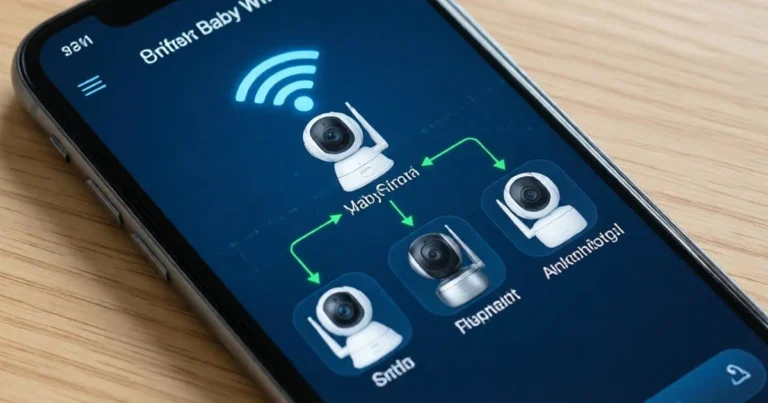
Infant Optics DXR-8 PRO: Interchangeable lens system, supports four cameras, excellent security through FHSS technology that constantly changes frequencies.
Eufy SpaceView Pro: 720p video quality, 30-hour battery life, wide-angle lens, secure wireless FHSS transmission provides protected and private connection.
Babysense HD S2: Split-screen capability, pan-tilt-zoom control, advanced FHSS technology ensures hack-proof, stable connection, built using technology that maintains a private feed.
For detailed reviews and comparisons, see our comprehensive guide: Best Non-WiFi Baby Monitor
The Honest Trade-Off
You sacrifice remote access when away from home. For families where both parents work outside the home and want to check on baby during lunch breaks, or for frequent travelers, this limitation matters.
But for families who primarily monitor while home, the security simplification often outweighs the remote access convenience.
Conclusion: Security Isn’t One Big Fix—It’s Five Small Habits Done Consistently
Securing your baby monitor doesn’t require technical expertise or expensive equipment. It requires implementing five straightforward steps and maintaining simple habits:
- Physical Placement: 6+ feet from crib, away from router, VOX mode enabled
- Network Security: WPA3 encryption, guest network isolation, disabled WPS/UPnP
- Strong Credentials: Unique 12+ character passwords, 2FA enabled, no reuse
- Regular Updates: Monthly firmware checks, automatic updates enabled
- Minimal Operation: Power off when unused, remote access only when needed
The Reality Check:
You can’t eliminate all risk with internet-connected devices. But you can become a “hard target” that hackers skip in favor of easier victims still using default passwords and outdated firmware.
Your Action Plan:
Set aside 30 minutes this week to implement all five steps. Then maintain them through monthly firmware checks and consistent security habits.
Or Choose the Simpler Path:
If ongoing security maintenance feels overwhelming, remember that non-WiFi monitors eliminate these requirements entirely. Sometimes the best security strategy is removing the vulnerability completely.
For families ready to prioritize security over convenience, explore our comprehensive review: Best Non-WiFi Baby Monitor
Your baby’s safety deserves proactive protection. Whether you choose secured WiFi monitoring with diligent maintenance or non-WiFi alternatives with inherent security, you’re taking responsibility for protecting your family’s privacy and your child’s wellbeing.
The choice is yours—but inaction is not an option.
Frequently Asked Questions
Q: What is the first security step parents should take with a new baby monitor?
A: Change the default password immediately to a strong, unique credential of at least 12 characters mixing uppercase, lowercase, numbers, and symbols. Then place the monitor at least 6 feet from your baby’s crib to reduce EMF exposure. These two actions—taking under 10 minutes combined—eliminate the most common vulnerabilities hackers exploit first.
Q: Are password changes enough to secure a baby monitor?
A: No—password changes alone are insufficient. You must also secure your home network with WPA2/WPA3 encryption, enable two-factor authentication if available, keep firmware updated monthly, create guest network isolation for IoT devices, and limit monitor operation to only when actually needed. Comprehensive security requires multiple layers working together.
Q: Should firmware always be updated immediately?
A: Yes. Outdated firmware is the #1 exploit path for sophisticated hackers. Manufacturers release security patches to address newly discovered vulnerabilities—these patches only protect you if you actually install them. Enable automatic updates if available, or set monthly reminders to check manually. If your manufacturer stops releasing updates, replace the monitor.
Q: How often should I check my baby monitor security settings?
A: Check firmware updates monthly (first day of each month is an easy reminder). Review connected devices on your router weekly to catch unknown devices. Verify passwords quarterly or whenever you suspect any security issue. Change passwords immediately if you learn of any data breach affecting accounts where you reused credentials.
Q: Is it safe to use WiFi baby monitors if I follow all security steps?
A: Yes—properly secured WiFi monitors can be used safely when you maintain strong unique passwords, enable 2FA, update firmware regularly, use guest network isolation, and disable remote access when home. However, this requires ongoing diligence. If maintaining these practices feels overwhelming, non-WiFi monitors eliminate internet-based vulnerabilities entirely without requiring security maintenance.
Q: What’s the easiest way to secure a baby monitor?
A: The absolute easiest method is choosing a non-WiFi monitor that cannot be accessed remotely because it never connects to the internet. Models using FHSS technology provide excellent security without passwords to manage, firmware to update, or networks to configure. For families prioritizing simplicity over remote access, non-WiFi represents the path of least resistance to maximum security.
About the Author
Gran Aggie is a grandmother, parenting blogger, and practical security advocate who believes safety measures must be simple enough to actually implement. Originally from Scotland, married to an Australian, and now living in Chicago, she combines decades of parenting experience with straightforward cybersecurity guidance that busy parents can realistically maintain. After watching countless families struggle with overwhelming technical advice, Gran Aggie focuses on creating actionable strategies that balance genuine security with practical feasibility. Her mission is helping parents protect their families without requiring computer science degrees or hours of daily maintenance—because the best security protocol is the one you’ll actually follow consistently.