2026 Baby Monitor Security Checklist Every Parent Should Follow
Table of Contents
Keep this on your fridge or save it in your notes app—this comprehensive security checklist could prevent your family from becoming another hacking statistic. As a grandmother who’s watched too many families discover security vulnerabilities only after experiencing breaches, I’ve created this printable, shareable resource that covers everything from initial setup through ongoing maintenance.
This isn’t theoretical security theater—it’s a practical action plan based on FBI recommendations, cybersecurity expert guidance, and analysis of real baby monitor hacking incidents. Whether you’re setting up a brand-new monitor or securing an existing one, this checklist ensures you’ve addressed every critical vulnerability.
For context on why these security measures matter, see our comprehensive analysis: Are Wi-Fi Baby Monitors Safe?
✅ The Ultimate Baby Monitor Security Checklist
Before Setup: Choosing a Secure Monitor
Before purchasing or setting up your baby monitor, evaluate these security-critical factors:
☐ Research Brand Security Track Record
Action Steps:
- Search “[Brand Name] baby monitor security breach” or “hacking”
- Review r/netsec and cybersecurity forums for mentions
- Check if brand has responded to past vulnerabilities promptly
- Verify manufacturer still actively supports the model with updates
Red Flags:
- Brand has history of unpatched vulnerabilities
- Manufacturer went out of business or discontinued support
- Multiple security incidents with slow response
- No security contact information on website
☐ Verify Regular Firmware Update Schedule
How to Check:
- Visit manufacturer’s support website
- Find your specific model’s firmware history
- Verify updates released within past 12 months
- Check if security patches are clearly documented
Warning Sign: If the last firmware update was over 12 months ago, the manufacturer may have abandoned security support.
☐ Prefer Monitors with Local Storage (No Mandatory Cloud)
Choose a monitor with local storage only (no cloud) or at minimum, ensure cloud storage is optional rather than mandatory.
Why This Matters:
Cloud-based systems create additional attack vectors:
- Your data passes through manufacturer’s servers
- Breaches affect all customers simultaneously
- You lose control over where video is stored
- Subscription fees may be required for full functionality
Best Options:
- Local storage on microSD card
- Direct transmission to parent unit only
- Optional cloud with ability to completely disable
☐ Confirm Two-Factor Authentication Availability
Two-factor authentication (2FA) represents your strongest defense after passwords. Verify your chosen monitor supports this critical feature before purchasing.
Check:
- App store description mentions 2FA or two-step verification
- Manufacturer’s spec sheet lists 2FA as feature
- User manual includes 2FA setup instructions
- Customer reviews mention 2FA options
Deal-Breaker: Monitors without 2FA represent significant security shortcomings in 2025.
☐ Consider Non-WiFi If Remote Access Isn’t Essential
Prefer non-WiFi if remote access isn’t essential. Non-WiFi monitors eliminate internet-based vulnerabilities entirely.
The Simple Truth:
Digital Baby Monitors are not as high tech as WiFi Monitors. You cannot view the feed online with a smartphone, tablet, or computer like with WiFi. Therein lies the problem. The more “accessible” the feed is, the more chances someone has of finding a way in.
Non-WiFi Benefits:
- Zero remote hacking risk
- No passwords to manage or update
- No firmware updates required
- Complete privacy (never touches internet)
- Simpler setup and operation
For comprehensive reviews of secure alternatives, see: Best Non-WiFi Baby Monitor
During Setup: Secure Configuration
These critical steps must be completed during initial setup—never skip them:
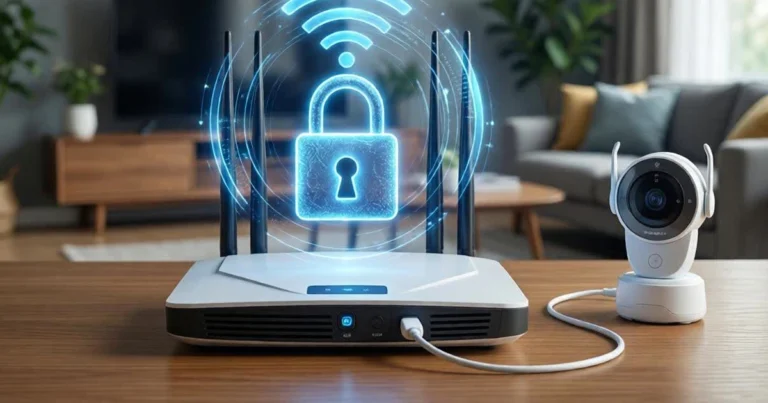
☐ Connect to Guest Network (Not Main Family Wi-Fi)
Connect to guest network (not main family WiFi). This isolation prevents compromised monitors from accessing your computers, phones, and sensitive data.
Setup Process:
- Access your router’s admin panel (typically 192.168.1.1)
- Navigate to Guest Network settings
- Enable guest network with unique name (e.g., “Smart_Devices”)
- Set strong password different from main network
- Disable guest-to-guest device communication if option exists
- Connect baby monitor only to this isolated network
Security Advantage: Even if your monitor is hacked, attackers cannot pivot to your main network where banking, work files, and personal data reside.
☐ Change Default Username & Password Immediately
Never Use Defaults:
The credentials can be retrieved through a simple google search, be stated in the product manual, be the easily guessable pair of “admin” and “admin,” or some other equally ingenious word combination.
Action Required:
- Log into monitor’s app or web interface
- Navigate to Settings → Account or Security
- Change both username AND password
- Never use admin, password, 1234, or similar defaults
Password Requirements:
- Minimum 12 characters (15+ is better)
- Mix uppercase, lowercase, numbers, symbols
- No personal information (names, dates, addresses)
- Never reuse from other accounts
- Store in password manager
☐ Enable Two-Factor Authentication
Enable two-factor authentication (2FA) immediately after changing credentials.
Setup Process:
- Open baby monitor app settings
- Find Security or Account Settings section
- Locate Two-Factor Authentication option
- Choose authentication method:
- Best: Authenticator app (Google Authenticator, Authy)
- Good: SMS text messages
- Acceptable: Email codes
- Complete verification process
- Save backup codes in secure location
Critical: Test 2FA by logging out and back in to verify it works before finishing setup.
☐ Disable Remote Access Unless Traveling
Disable remote access unless traveling. Remote viewing creates internet-based vulnerabilities you don’t need when monitoring from home.
How to Disable:
- Find “Remote Access,” “Internet Access,” or “Away Mode” in settings
- Toggle to OFF or DISABLED
- Verify you can still monitor via local network
- Re-enable only when actually away from home
Exception: If both parents work and want lunch-break check-ins, limit remote access to specific times rather than 24/7 availability.
☐ Position Monitor ≥6 Feet From Crib
Place the monitor at least 6 feet (1.8 meters) away from your baby’s crib.
Why Distance Matters:
Research shows monitors placed less than 3.2 feet from a crib emit radiation levels comparable to a cell phone tower 500 feet away. A baby’s skull is two millimeters thick compared to six to seven millimeters for adults—they absorb significantly more radiation from the same source.
Optimal Placement:
- 6+ feet from crib on stable dresser or shelf
- Angled to capture full crib view
- Away from other wireless devices (router, cordless phones)
- Secure position where it cannot be knocked over
- Power cords out of baby’s reach
For detailed EMF research, see: Are Wi-Fi Baby Monitors Safe?
☐ Enable VOX (Voice-Activated) Mode
Use VOX/audio-activation to reduce transmission time. Voice-activated monitors only transmit when baby makes sounds above a threshold, dramatically reducing both EMF exposure and hacking vulnerability.
VOX Benefits:
- Reduces electromagnetic radiation by 60-80%
- Extends battery life from 8 hours to 20+ hours
- Decreases “always-on” vulnerability window
- Less distracting (screen only activates when needed)
Sensitivity Adjustment:
- Start at medium sensitivity
- Increase if missing baby’s cries
- Decrease if activating from household noises
- Test from different rooms to verify detection
Ongoing Maintenance: Stay Protected
Security isn’t a one-time setup—it requires consistent maintenance:
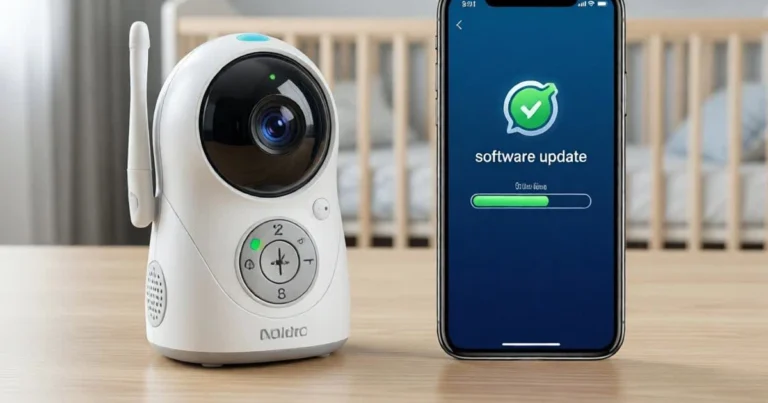
☐ Update Firmware Monthly
Update firmware monthly. Set a recurring calendar reminder for the first day of each month.
Monthly Update Process:
- Open baby monitor app
- Navigate to Settings → Device Info → Firmware
- Check current version against latest available
- Install updates if available (typically 5-15 minutes)
- Never unplug during update process
- Verify monitor functions properly after update
Enable Auto-Updates: If your monitor supports automatic firmware updates, enable this feature to ensure you’re always protected against newly discovered vulnerabilities.
Red Flag: If manufacturer hasn’t released an update in 12+ months, consider replacing the monitor.
☐ Review Connected Devices on Router Weekly
Check your router’s connected devices list weekly to identify any unknown or suspicious connections.
Weekly Review Process:
- Log into router admin panel
- Navigate to Connected Devices or Device List
- Review all device names and MAC addresses
- Investigate anything unrecognized
- Remove unauthorized devices immediately
What to Look For:
- Devices you don’t recognize
- Duplicate entries of your monitor
- Generic names like “Unknown-Device”
- Unusual connection times (middle of night)
Tools to Help: Apps like Fing (free) scan your network and identify all connected devices with details about manufacturer and device type.
☐ Change Passwords Quarterly
Change your baby monitor password every 3 months, or immediately if:
- You suspect any security breach
- Your email appears on haveibeenpwned.com
- Manufacturer announces security vulnerability
- You shared credentials with someone no longer needing access
Password Rotation Strategy:
- Set quarterly calendar reminder
- Generate new strong password via password manager
- Update in monitor app
- Update in password manager
- Log out all sessions and log back in with new credential
☐ Turn Off Monitor When Not in Use
Turn off monitor when not in use. Power down during:
- Daytime supervised play
- When someone is physically with baby
- Anytime monitoring isn’t actually necessary
Security Logic: Hackers cannot access a monitor that isn’t powered on. Limiting “always-on” time to only when you actually need surveillance dramatically reduces exposure.
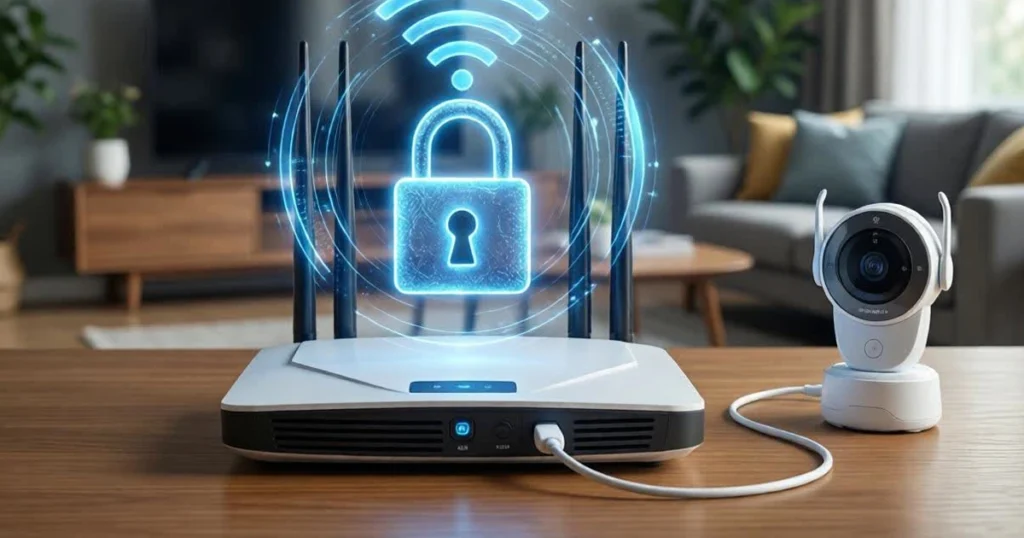
☐ Test Security Settings After Router/Network Changes
Anytime you change your router, network settings, or ISP, verify your baby monitor security settings remain intact:
Post-Change Verification:
- Confirm monitor still on guest network
- Verify remote access disabled (if that’s your preference)
- Check firmware version hasn’t reverted
- Test 2FA still functions
- Review connected devices list
☐ Monitor for Unusual Behavior
Watch for warning signs that your monitor may be compromised. For comprehensive guidance, see: Signs Your Baby Monitor Has Been Hacked
Warning Signs:
- Camera moves without your input
- Settings change mysteriously
- Unfamiliar voices through speaker
- LED lights behave oddly
- Unknown devices on network
- Your child mentions “talking monitor”
If You Suspect a Breach: Emergency Response
Act immediately if you notice any suspicious activity:
☐ Unplug Immediately
Disconnect power and WiFi connectivity instantly. Do not investigate while the device remains active—cutting power terminates hacker’s access.
☐ Factory Reset Device
Perform complete factory reset following manufacturer’s instructions. This wipes any unauthorized access or modified settings.
Reset Location: Most monitors have a reset button on the back or bottom, requiring 10-30 seconds of holding while powering on.
☐ Change All Related Passwords
Change potentially compromised passwords for:
- Baby monitor app/account
- WiFi network
- Router admin credentials
- Email associated with monitor
- Any accounts using the same password
Make sure to log out of all devices when changing passwords, forcing the hacker out of any active sessions.
☐ Secure Your Network
Change your WiFi password to cut off any unauthorized access gained through your network.
Network Security Audit:
- Change router admin password
- Update WiFi password (WPA3 encryption)
- Disable WPS and UPnP
- Check for firmware updates for router
- Review all connected devices
- Consider factory resetting router if breach was severe
☐ Report to Authorities
Report the incident to:
- Local police (for documentation)
- FBI’s Internet Crime Complaint Center (IC3) at ic3.gov
- Manufacturer’s security team
- FTC at reportfraud.ftc.gov if financial fraud involved
Why Reporting Matters:
If your baby monitor was hacked, chances are you’re not the only one. Reporting helps prevent similar incidents and potentially catch perpetrators.
☐ Consider Replacement with Non-WiFi Model
If your monitor’s been hacked, seriously consider investing in a different device—or better yet, one that doesn’t connect to the internet at all.
Why Replace:
- Peace of mind may be impossible with same device
- Manufacturer’s security may remain questionable
- Non-WiFi alternatives eliminate this vulnerability entirely
For secure alternatives, see: Best Non-WiFi Baby Monitor
For detailed incident response guidance, read: /secure-baby-monitor-from-hackers
Save this checklist to:
- Print and keep on your fridge
- Save in your phone’s notes app
- Email to your partner or caregiver
- Share with other parents in your social circles
Create Calendar Reminders:
- Monthly (1st): Check firmware updates
- Weekly (Sundays): Review connected devices
- Quarterly (Jan/Apr/Jul/Oct): Change passwords
Why This Checklist Works
This comprehensive security protocol is based on:
FBI Recommendations: The FBI has investigated multiple baby monitor hacking cases, providing guidance on preventive measures and incident response.
FTC Consumer Protection: The Federal Trade Commission has issued warnings about IoT device security, including baby monitors, with specific recommendations for consumers.
Cybersecurity Expert Analysis: Security researchers from organizations like the Electronic Frontier Foundation have identified specific vulnerabilities in baby monitors and recommended protective measures.
Real Incident Analysis: Every recommendation addresses vulnerabilities exploited in documented hacking incidents from the Washington profanity case to the Austin FBI investigation.
Practical Feasibility: Unlike theoretical security guides that require IT expertise, this checklist balances genuine protection with realistic implementation for busy parents.
The Simplified Alternative: Non-WiFi Monitors
After reviewing this comprehensive checklist, some parents reasonably ask: “Is maintaining all this security really easier than choosing a monitor that doesn’t need it?”
The Non-WiFi Advantage:
Pick up a non-WiFi digital device, like some VTech models. You have a parent unit and a baby unit. The two speak to each other over constantly changing digital frequencies, not WiFi. No hacker on the planet will bother you this way.
What You Eliminate: ❌ Password management and quarterly changes ❌ Monthly firmware update checks ❌ Network configuration and isolation ❌ Two-factor authentication setup ❌ Security monitoring and vigilance ❌ Remote hacking vulnerability
What You Gain: ✅ Complete peace of mind ✅ Privacy guaranteed (never touches internet) ✅ Simple setup and operation ✅ Lower EMF exposure ✅ No ongoing maintenance
For families prioritizing security simplicity over remote access, explore: Best Non-WiFi Baby Monitor
For detailed security comparison, see: How to Secure Your Baby Monitor in 5 Easy Steps
Conclusion: A Few Minutes Today Can Prevent a Nightmare Tomorrow
Baby monitor security doesn’t have to be overwhelming. This checklist breaks down comprehensive protection into manageable steps:
One-Time Setup (30 minutes):
- Choose secure monitor
- Configure during setup
- Enable all security features
Ongoing Maintenance (15 minutes monthly):
- Update firmware
- Review connected devices
- Change passwords quarterly
Emergency Response (if needed):
- Act immediately
- Follow breach protocol
- Consider replacement
Or Choose Simplicity:
If this checklist feels overwhelming, remember that non-WiFi monitors eliminate these requirements entirely. Sometimes the best security strategy is removing the vulnerability completely.
The choice between secured WiFi monitoring and non-WiFi alternatives depends on your specific needs, technical comfort, and whether remote access justifies the security complexity.
Your Next Steps:
- Print this checklist and post somewhere visible
- Set calendar reminders for monthly/weekly checks
- Implement setup steps for existing monitor
- Or explore non-WiFi alternatives for simplified security
Your baby’s safety deserves proactive protection. This checklist ensures you’ve addressed every known vulnerability without requiring a computer science degree.
Don’t wait for a breach to take security seriously. A few minutes of prevention today protects your family from years of trauma tomorrow.
About the Author
Gran Aggie is a grandmother, parenting blogger, and practical security advocate who creates actionable checklists that busy parents can actually implement. Originally from Scotland, married to an Australian, and now living in Chicago, she combines decades of parenting experience with straightforward cybersecurity guidance. After watching countless families struggle with overwhelming technical advice that never gets followed, Gran Aggie specializes in breaking comprehensive security into manageable steps with specific calendar reminders and clear action items. Her mission is ensuring every parent has a practical roadmap to protect their family without requiring IT expertise or hours of daily maintenance. She believes the best security protocol is the one you’ll actually complete—which is why this checklist exists.
Frequently Asked Questions
What security steps are most important for baby monitors?
The three most critical steps are: (1) Strong, unique password with two-factor authentication enabled, (2) Guest network isolation separating your monitor from main devices with sensitive data, and (3) Monthly firmware updates to patch newly discovered vulnerabilities. If you can only do three things, prioritize these—they prevent the vast majority of successful attacks.
How often should parents check their baby monitor security settings?
Check firmware updates monthly (set a recurring reminder for the 1st of each month). Review connected devices on your router weekly (Sunday evenings work well). Change passwords quarterly (every 3 months), or immediately if you suspect any compromise or learn of data breaches affecting accounts where you reused credentials.
Are cheap baby monitors less secure than expensive ones?
Often yes—budget monitors frequently skip encryption, lack firmware update support, and ship with default credentials that many users never change. They may also lack two-factor authentication and have poorly documented security features. However, price alone doesn’t guarantee security—even expensive monitors become vulnerable without proper configuration and maintenance. Focus on security features rather than price alone.
Do I really need to change my password every 3 months?
While quarterly password changes aren’t strictly necessary if you use a truly strong, unique password (15+ characters with symbols) and enable 2FA, regular rotation adds an additional security layer. It’s especially important if you’ve ever shared credentials with babysitters, grandparents, or others who may have noted them down. Immediate changes are required after any suspected breach or data leak.
Can I skip the guest network step if I have good passwords?
Network isolation provides critical defense-in-depth that passwords alone cannot. Even with perfect passwords and 2FA, firmware vulnerabilities or zero-day exploits might compromise your monitor. Guest network isolation ensures that even a fully compromised monitor cannot access your computers, phones, and sensitive data on your main network. This 10-minute setup prevents attackers from pivoting to more valuable targets.
What should I do if my router doesn’t support guest networks?
If your router lacks guest network capability, consider upgrading to a modern router with this essential feature (most routers from 2018+ include it). Alternatively, purchase a separate cheap router specifically for IoT devices, creating physical network segregation. As a last resort, use VLANs if you have technical expertise, or strongly consider non-WiFi monitors that eliminate the need for network security altogether.